 Vanoor
Guide
Alerts and voice cues: pace, heart rate, route, turns and distance
On this page
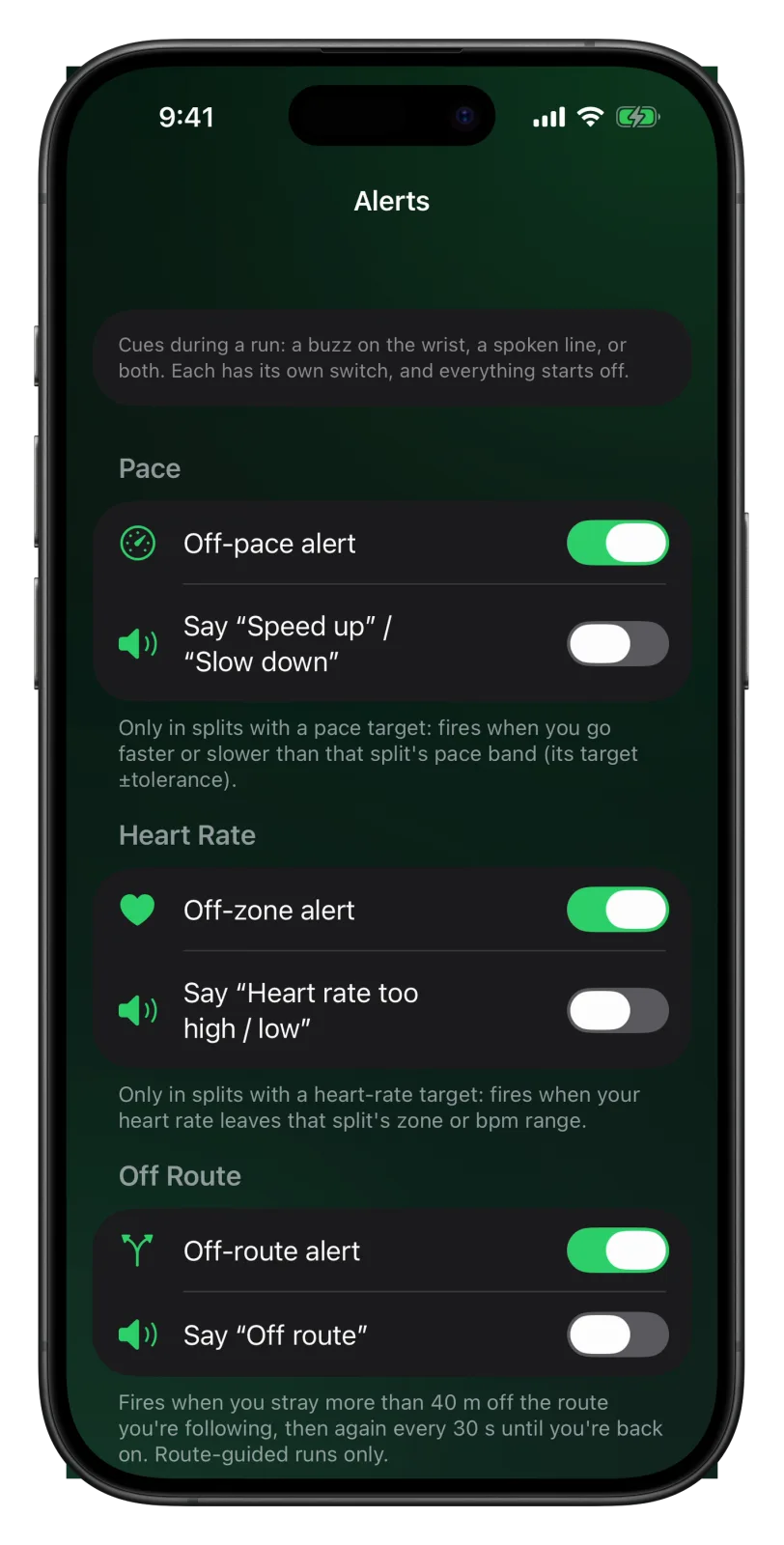
Vanoor can tap your wrist, speak to you, or both, when you drift off a workout target, leave your route, come up to a turn or pass another kilometre. Every alert and every spoken cue starts switched off, so you turn on the ones you want in Settings → Alerts.
Switch alerts on
- Open Vanoor on your iPhone and tap the gear on Home to open Settings.
- Tap Alerts.
- Turn on the alerts you want. Each section has a switch for the buzz and, below it, a switch for the spoken line.
Your settings sync to the Watch by themselves. The Watch reads them when you open a run, so set your alerts before you start.
What each section does
Pace
The Off-pace alert works inside a planned workout, in steps that have a pace target. It buzzes when you run faster or slower than that step's pace band, which is the target pace plus or minus the tolerance you set in the workout. The buzz for too fast feels different from the one for too slow, so you know which way to adjust without looking. Turn on Say “Speed up” / “Slow down” to hear it as well.
Heart Rate
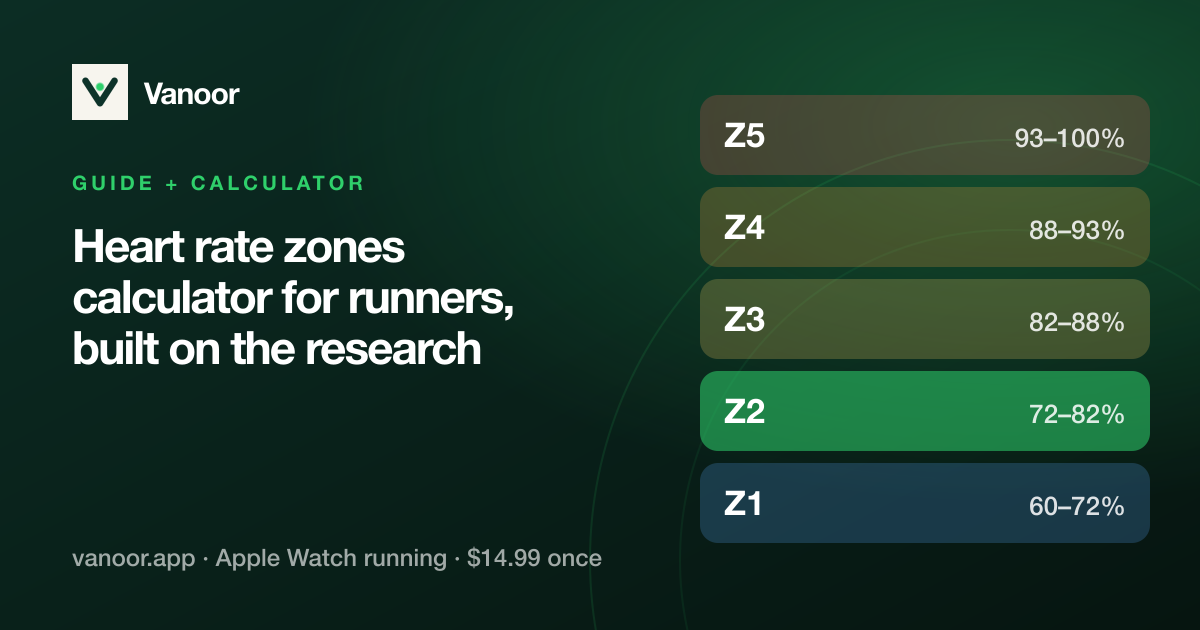
The Off-zone alert works in workout steps with a heart-rate target, either a zone or a bpm range. It buzzes when your heart rate goes above or below that target. Say “Heart rate too high / low” adds the spoken line. Zones come from your own settings under Settings → Profile → Heart-rate zones.
Off Route
When you follow a route, the Off-route alert buzzes if you get more than 40 m away from the line, then again every 30 seconds until you are back on it. Say “Off route” speaks it too. It never fires on a free run.
Turn-by-turn
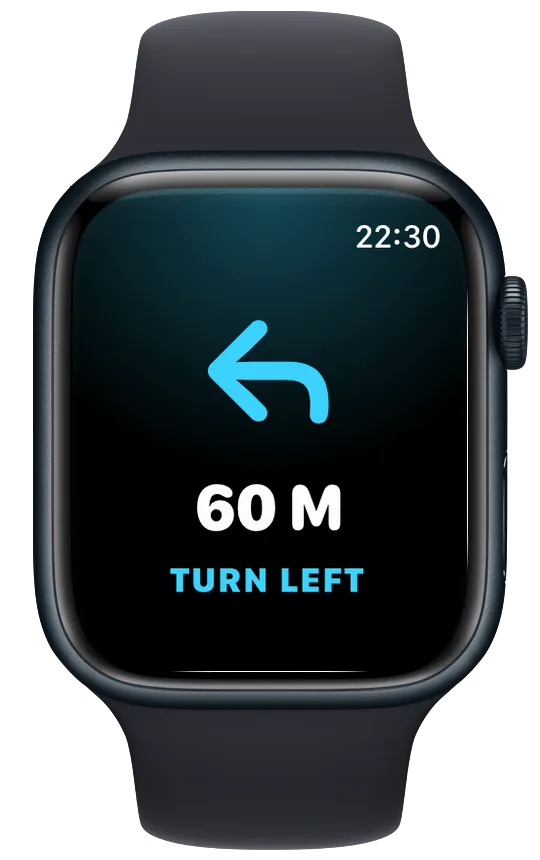
Turn alerts warn you before each turn on your route with a card and a buzz. Say “In 60 metres, turn left” speaks the turn. The third switch, Show the next turn on the map, marks the coming turn on the map page. It is already on, so the mark appears as soon as you turn on Turn alerts or the spoken turn. The section below explains what you see on the Watch.
Distance
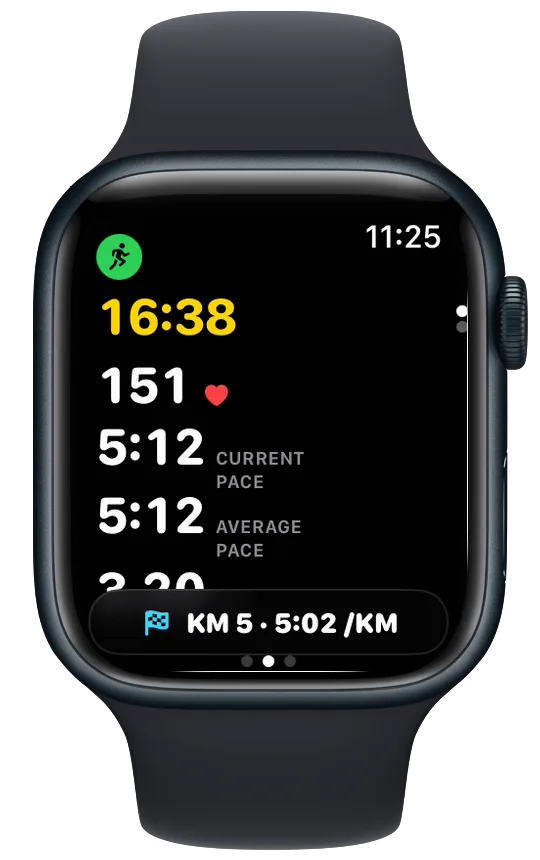
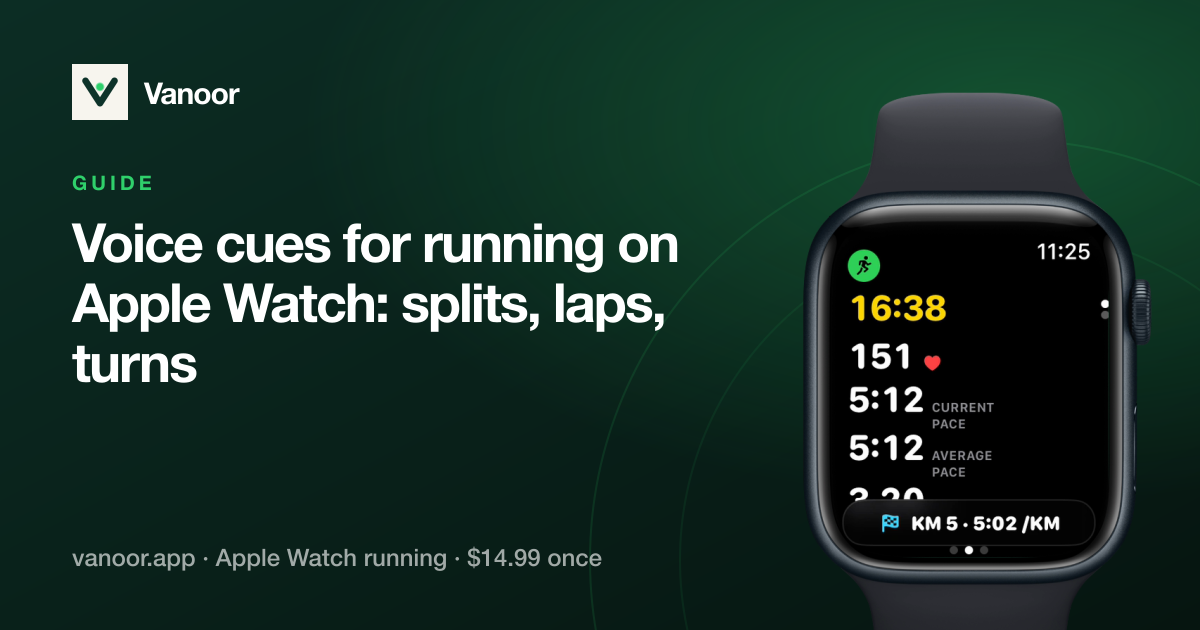
The Split alert buzzes at every kilometre, or every mile if your units are set to miles. It works on any run, planned or free. Say the kilometre and average pace speaks a line such as “Kilometre 7. Average pace 5:05.”
More spoken cues
These three have no buzz switch, because laps, workout steps and fuel reminders always buzz.
- Say each lap: “Lap 4. Pace 3 58.” when you press Lap.
- Say the next workout step, for example “Rep 3 of 6. 400 metres at 4:05.”
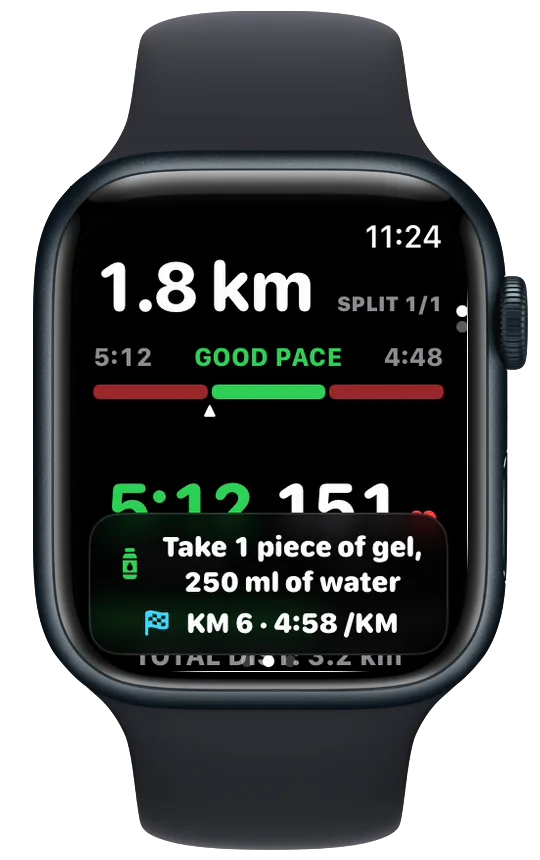
- Say fuel reminders, for example “Take 1 piece of gel and 250 millilitres of water.”
Play a sample, at the bottom of the section, lets you hear the voice before a run.
The pace and heart-rate alerts buzz once when you leave the band. If you stay outside it, they buzz again every 30 seconds, and they stop as soon as you are back inside.
Voice
Spoken cues play through your AirPods, or through the Watch speaker if you have none connected. If music or a podcast is playing, it gets quieter while Vanoor speaks. Every Say switch is off by default, so the Watch stays silent until you turn one on in Settings → Alerts.
Turn-by-turn
When you save a route and it syncs to your Watch, the iPhone works out every real turn along it. During the run the Watch uses that list, so turn cues work offline and without your phone.
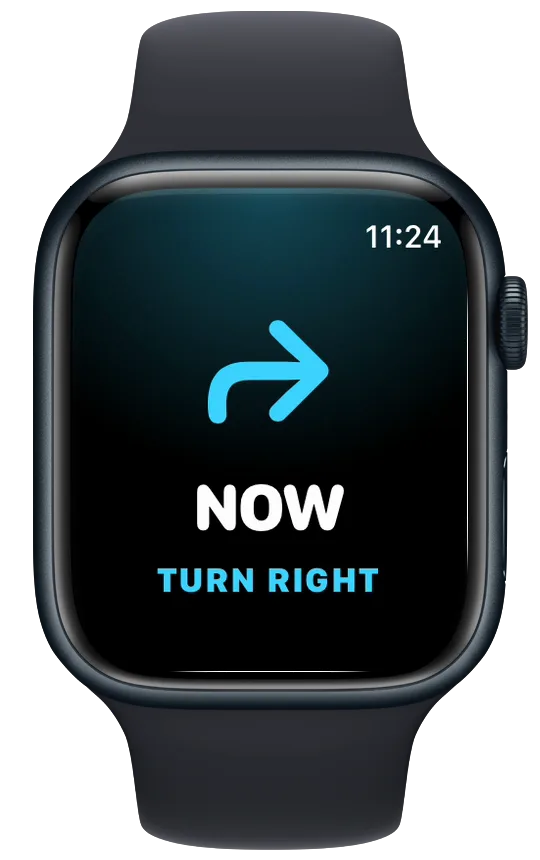
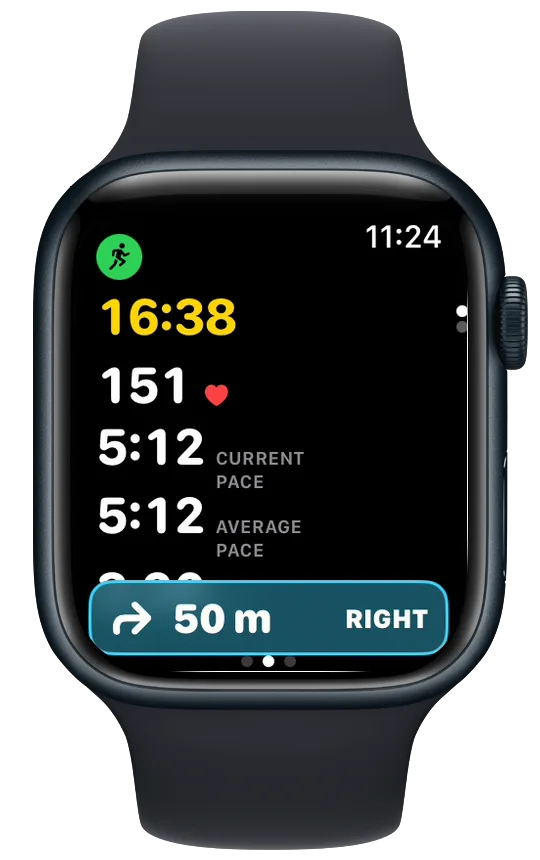
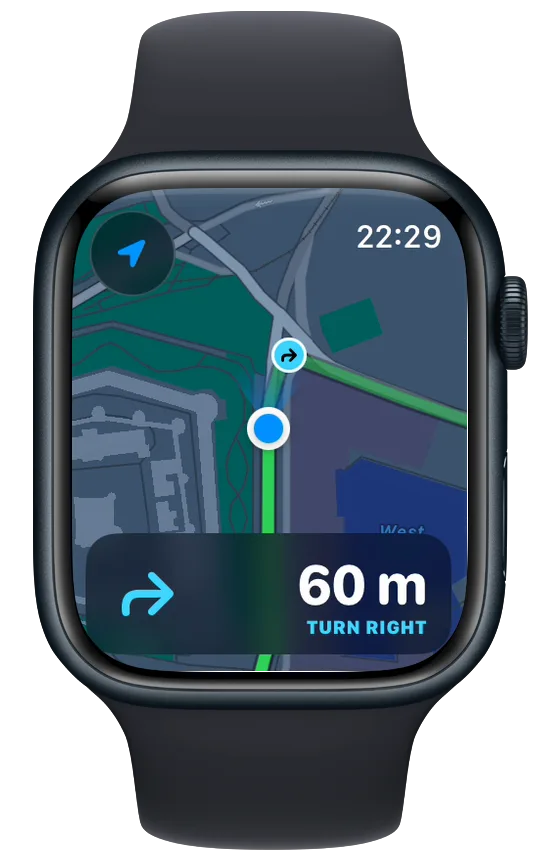
- About 60 m before a turn, a full-screen card shows the arrow, the distance in metres and the direction, for example TURN RIGHT. You feel a buzz. On the map page you get the map panel below instead of the card.
- After the card, a cyan strip at the bottom of your other pages keeps counting the metres down.
- On the map page, the bottom panel switches to navigation from about 100 m out: the arrow on the left, the metres on the right.
- At the turn itself you get a second buzz, and the card reads NOW.
Banners at the bottom of the screen
Kilometre splits, laps and fuel reminders show as a thin banner at the bottom of the screen, so the page you are on stays readable. When a fuel reminder comes on its own, with nothing else around it, it gets the whole screen for 4 seconds. If your wrist is down when a cue arrives, it waits, and its time on screen starts when you raise your wrist.
Mute alerts, voice or navigation for one run
- During the run, swipe right to the Controls page.
- Tap Run Settings.
- Use the switch you need: Mute alerts, Mute voice or Navigation.
- Mute alerts silences the pace, heart-rate, distance and off-route alerts for the rest of this run, and also the turn cards and turn buzzes. When none of your alerts are switched on, the row reads No alerts set up instead.
- Mute voice stops everything spoken for this run.
- Navigation, on a run with a route, turns off the turn cards, turn buzzes, spoken turns and the turn mark on the map for this run. The route line and the off-route alert stay.
Your settings on the iPhone stay as they are, so the next run uses them again. If you unmute, Vanoor carries on from that moment and doesn't replay the alerts you missed.
- On a free run there is no target, so the pace and heart-rate alerts stay quiet. Rest steps and open steps in a workout don't have a target either.
- Some cues are part of every run: the banner and buzz at each kilometre, and the buzz for a lap, a new workout step or a fuel reminder. Mute alerts leaves these on.
- The Split alert takes its distance from your units when you switch it on. If you change units later, switch it off and on again.
If an alert never buzzes
Check Settings → Alerts first, since everything there is off until you turn it on. Then check the run itself. Pace and heart-rate alerts need a planned workout step with that kind of target, and the off-route and turn alerts need a route. If you changed the setting during a run, it applies from the next run you open.
Related guides
Picked by shared topics.
Keep the Watch. Upgrade the run.
Vanoor: offline route navigation, race pacing and structured workouts on the Apple Watch you already own.
Get Vanoor on the App Store 7-day free trial · $14.99 once, no subscription · no account